Social teams
Turn a talking-head recording into a short, readable post. Review the first transcript, then emphasize the hook with a stronger caption style.
Use the veed ai video editor to finish the cut.Automatic subtitles, without the busywork
The veed ai caption generator turns spoken words into editable subtitles, so your videos are easier to follow, search, and share. Upload a clip, review the transcript, style the caption layer, and export a polished version from one browser-based workflow.
Start with the essentials
A clean source and a quick review are enough to produce readable, on-brand captions.
Use a video with audible speech and minimal background noise. Interviews, lessons, reels, and product explainers all work well.
Select the spoken language before transcription. Mixed-language clips deserve an extra listen during the review stage.
Automatic captions are a strong first draft. Scan names, jargon, punctuation, and line breaks before publishing.
From upload to export
VEED AI keeps the caption generator inside the edit, rather than making you move between a transcript tool and a separate video app. That means the words, timing, design, and final frame stay together.
Turn a talking-head recording into a short, readable post. Review the first transcript, then emphasize the hook with a stronger caption style.
Use the veed ai video editor to finish the cut.Caption lessons and demonstrations so viewers can learn with sound off. A generated transcript also gives you a useful base for the lesson description.
Pair captions with the veed ai video generator for fresh lessons.Make narration understandable across feeds and devices. Keep the caption layer editable when you want to adjust pacing around a voiceover.
Try the veed ai voice generator for a matched narration track.Repurpose a long conversation into captioned highlights. Search the transcript for strong moments before trimming clips for different channels.
Shape each highlight in the veed ai video editor.A practical setup guide
The caption generator is most useful when its settings match the job. Start with the simplest option, then add styling or translation only when the audience needs it.
| Option | Best for | Practical choice |
|---|---|---|
| Auto captions | Fast first drafts | Transcribe, correct, export |
| Styled subtitles | Short-form social posts | Use contrast and short lines |
| Translated captions | International audiences | Review names and phrasing |
| Burned-in captions | Platforms without subtitle support | Keep text inside safe margins |
Accuracy is a workflow, not a button
Even a capable veed ai caption generator can mishear a clipped syllable, a proper noun, or two people speaking at once. The fix is usually simple: improve the source audio, check the transcript, and adjust the timing before the final export.
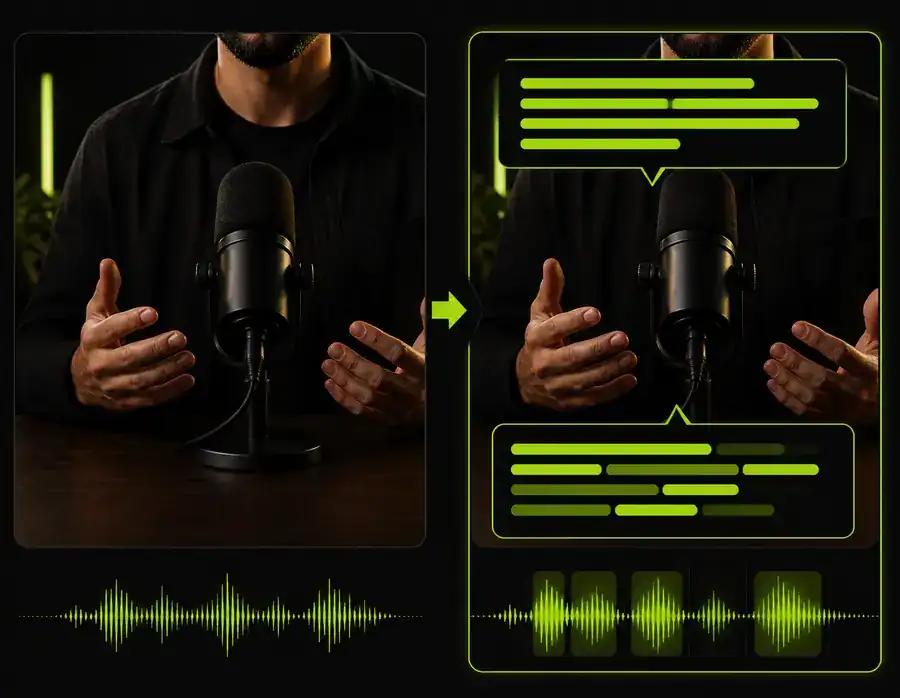

For the cleanest result, avoid music that competes with speech, preview captions on a phone-sized frame, and give unfamiliar names a final human check.
Keep the caption step connected to the rest of your production flow with these related VEED AI tools.
Plan the time you get back
Captioning speed depends on the length and clarity of your footage. Use this quick estimate to set expectations before starting a project.
It works best with clear spoken audio in common video formats. Strong background noise, overlapping speakers, or very quiet dialogue can reduce transcript accuracy.
Yes. Treat the generated text as an editable first draft: correct words, split long lines, change timing, and adjust the visual style before exporting.
Yes. Captions make the opening seconds easier to understand with sound off. Keep lines brief, use high contrast, and preview the result in the final vertical frame.
Listen for names, numbers, and technical terms; confirm the first caption appears at the right moment; then check that text remains inside the platform’s safe area.